New Account Setup
Setting up the constants
Once you are registered and login to the account, all the constants like categories and units needs to be created in order to record a transaction.
Follow the below steps to create required constants.
Creating Category
- Login to your GstBillBooks account and click on Constant on the left side menu.
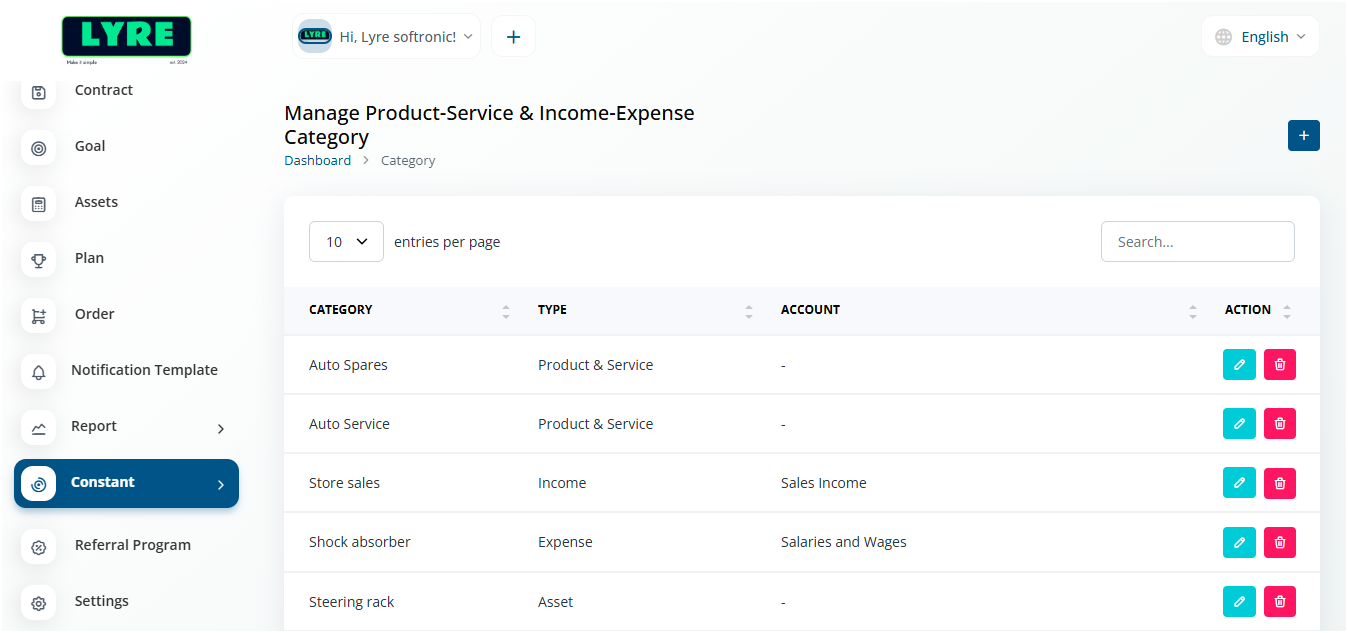
- Click on Category on Constant menu dropdown and click on the '+' plus button on top right side to create category.
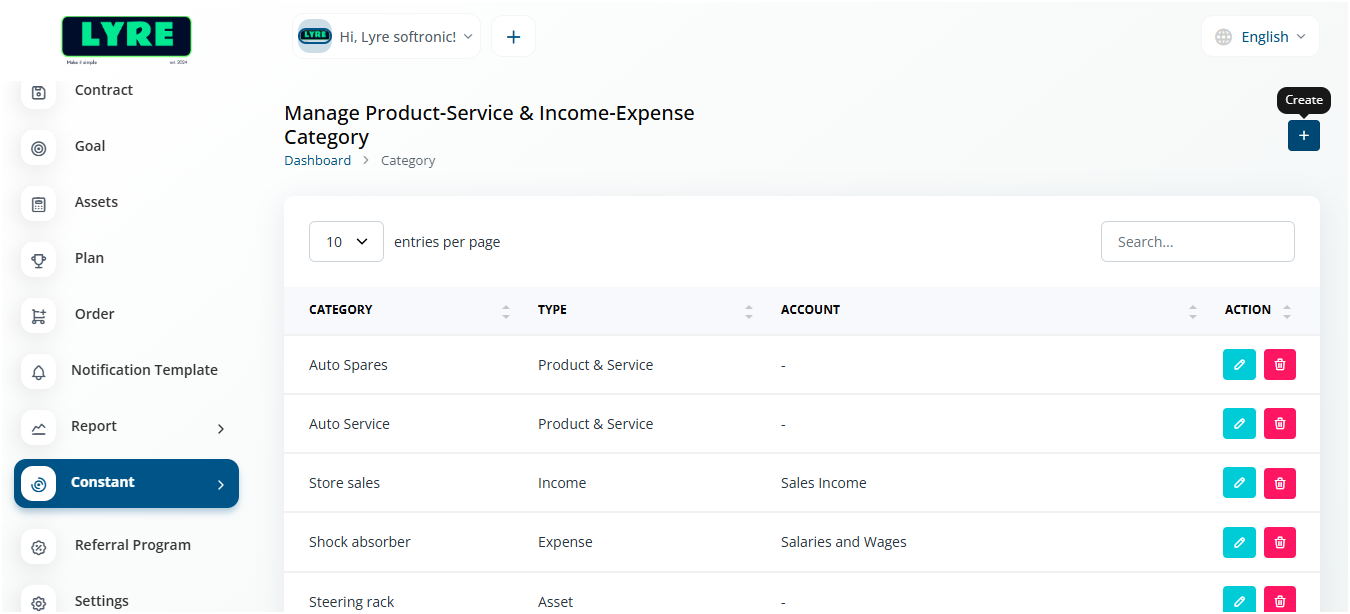
- Name the category of your choice and and in the drop down choose the category type of your choice.
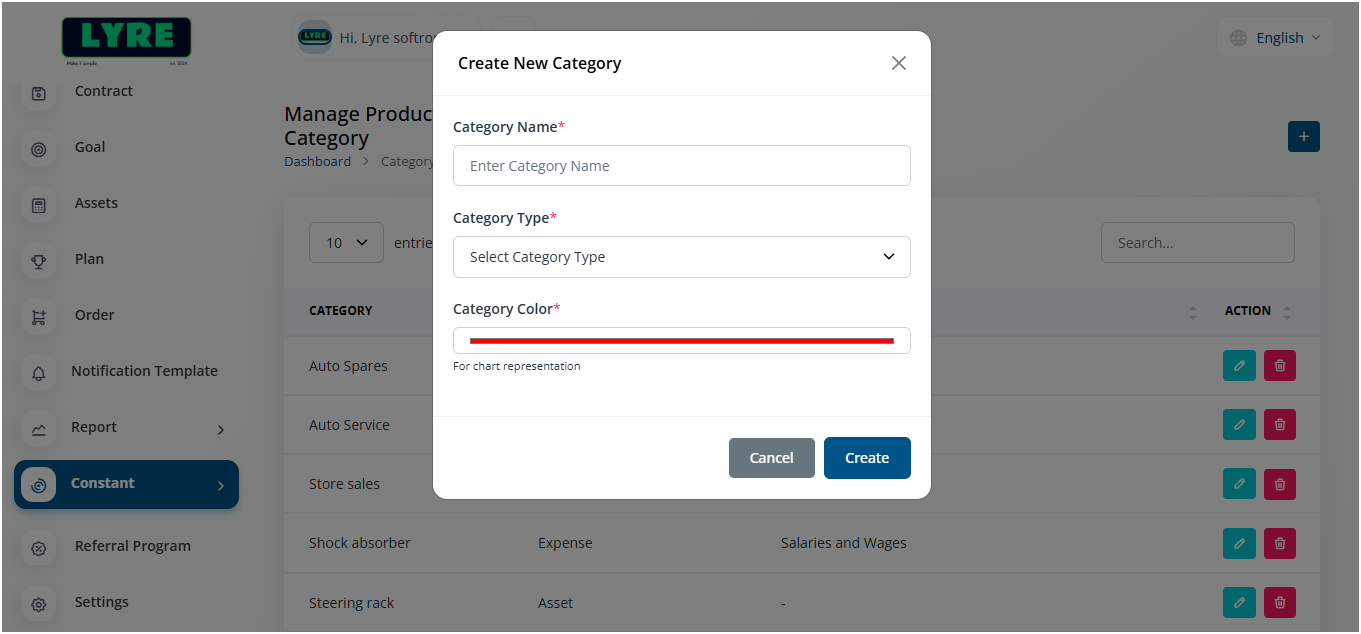
- Create atleast one category name for all the types in the drop down.
Note
If you are a new user without subscription, the account is limited to 5 customers, vendors and transactions.
Creating Units
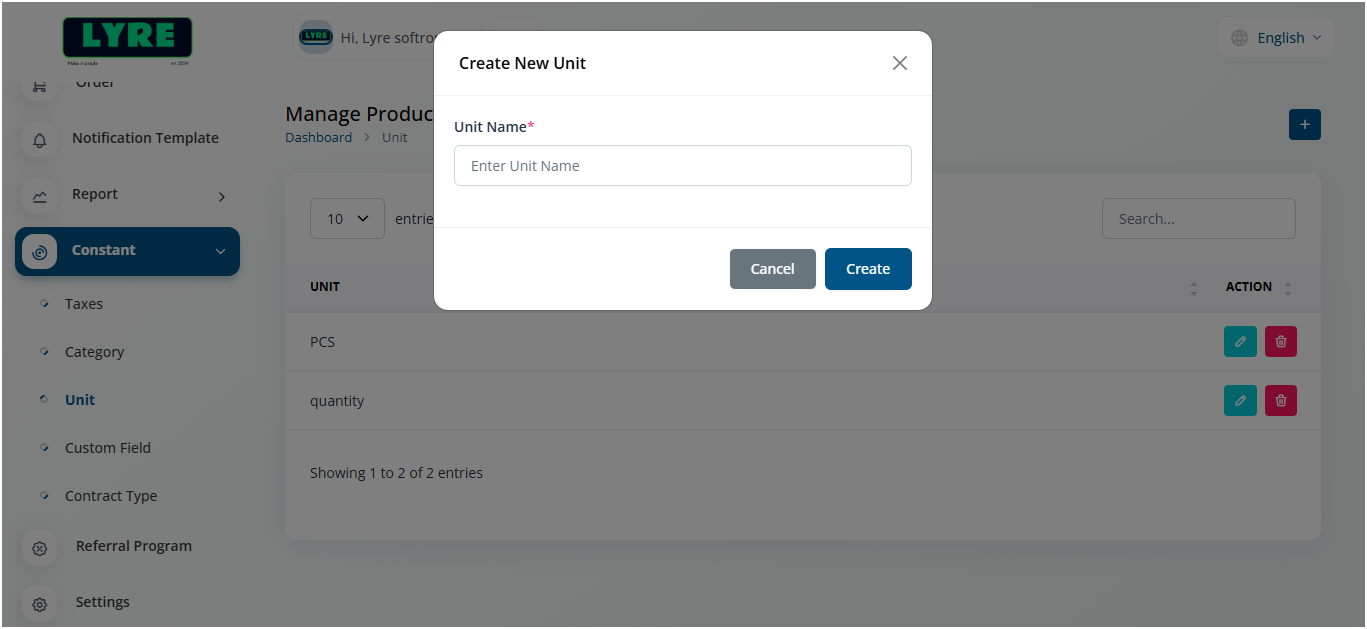
- Click on Constant on the left side menu of the GstBillBooks application.
- Click Unit on Constant menu dropdown.
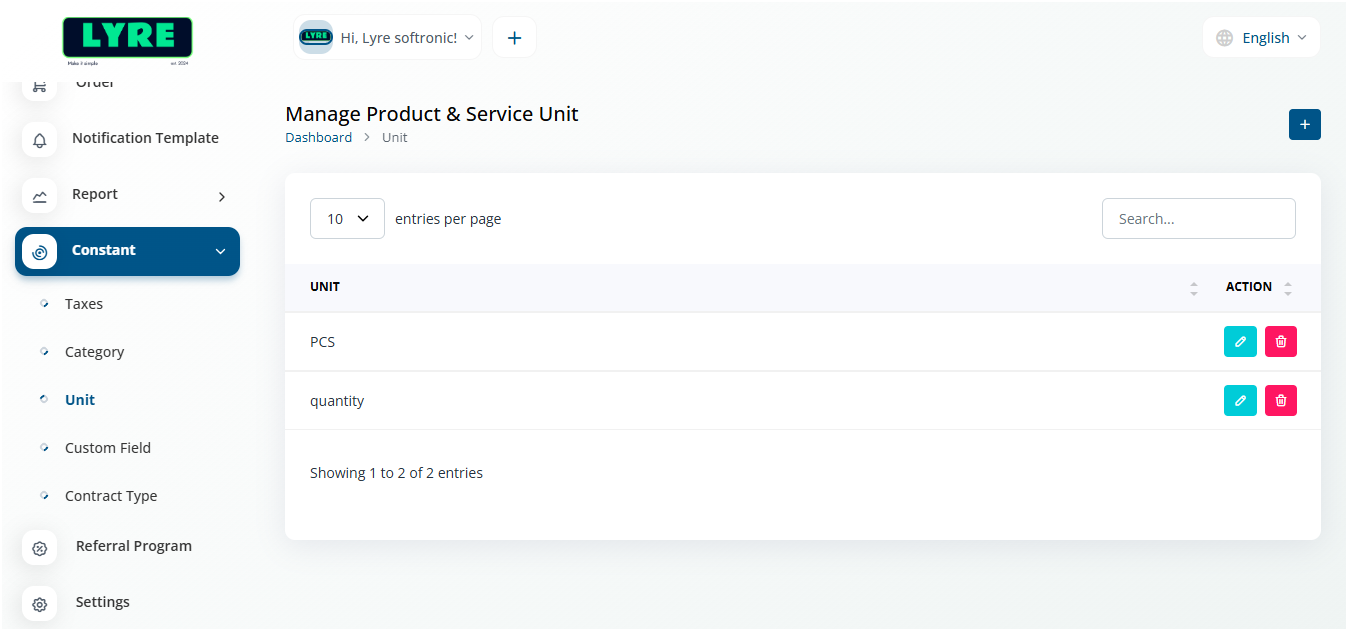
-
Click on the '+' plus button on top right side to create a unit name.
-
Unit name can be anything of your choice and multiple names can be created.
Creating Taxes
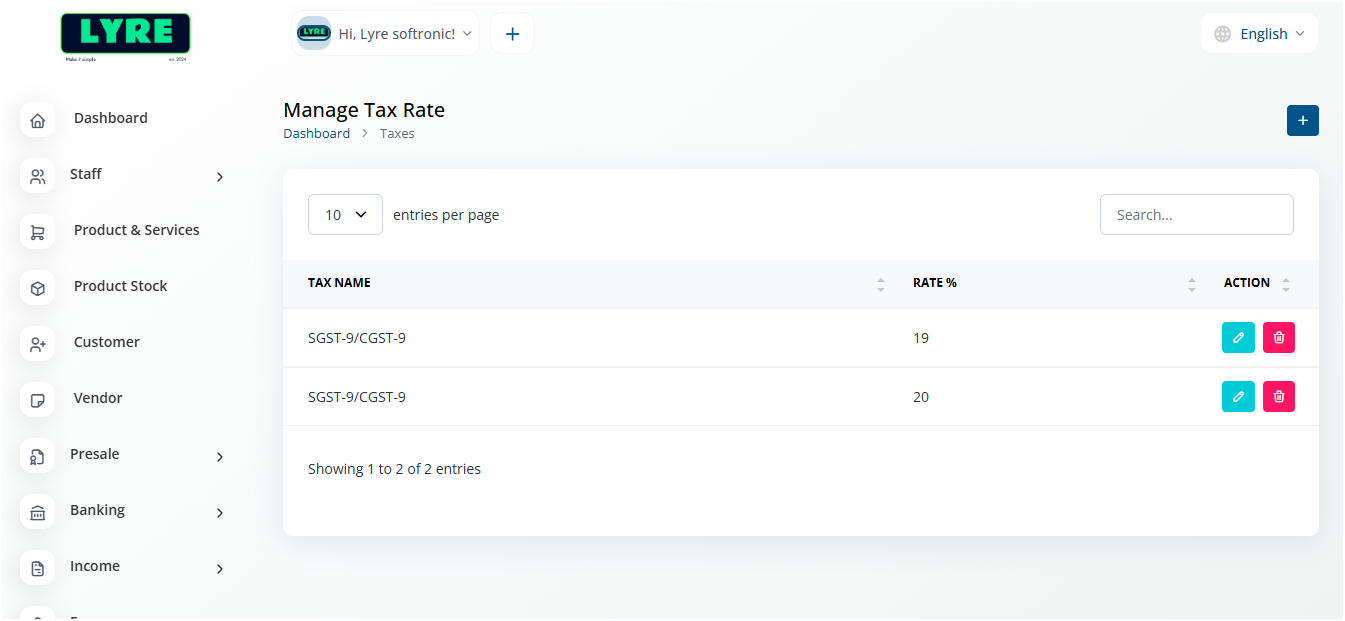
- Click on Constant on the left side menu of the GstBillBooks application.
- Click Taxes on Constant menu dropdown.
-
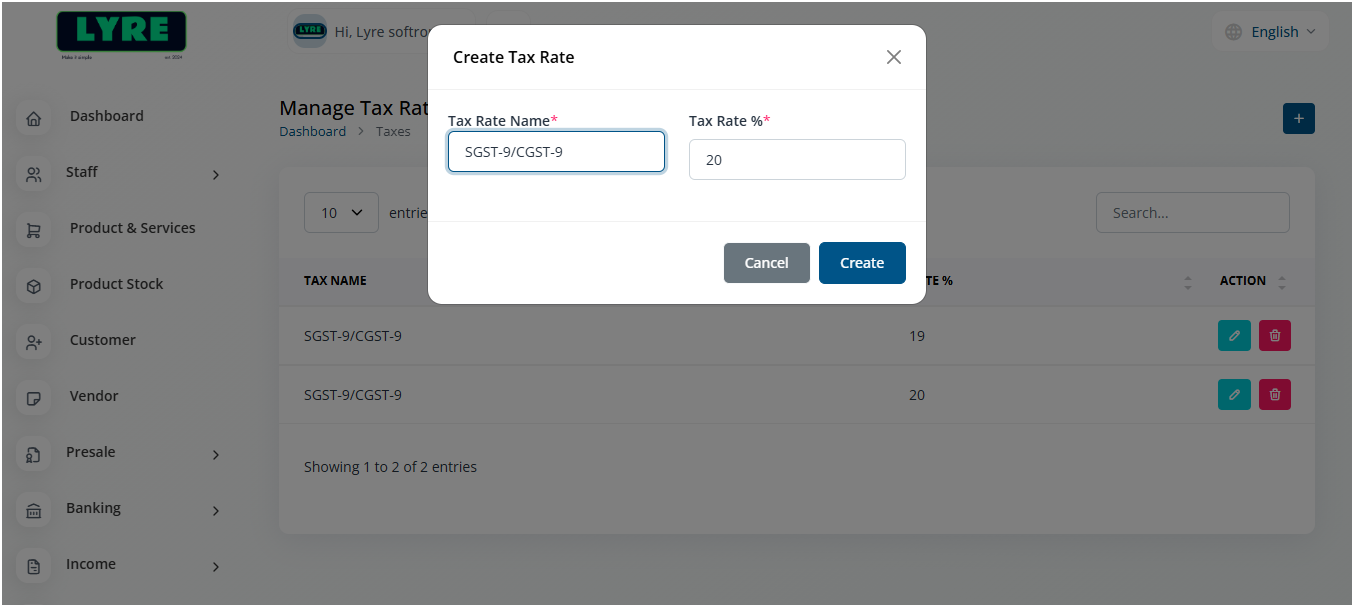
Click on the '+' plus button on top right side to create.
-
Enter the Tax name and percentage in the fields.
Note
Custom fields and Contract types are created according to your business needs on the transaction.